Installation Guide (Hyper-V)
This guide will help you set up Hyper-V on Wndows 10 so that you can run HIAS Core on a Virtual Machine.
Hyper-V Manager
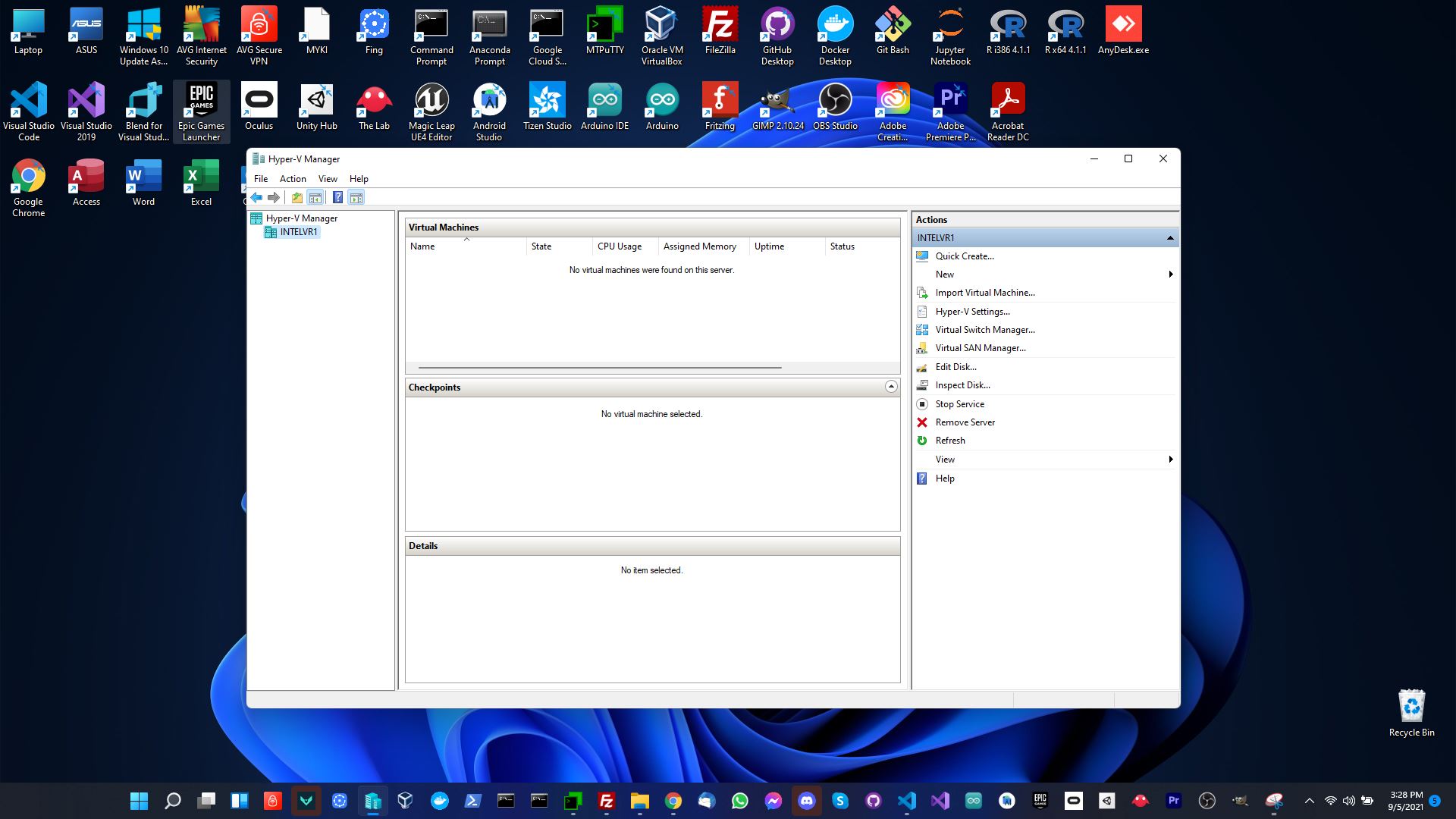
Open Hyper-V Manager by typing Hyper-V Manager in Windows search.
Quick Create
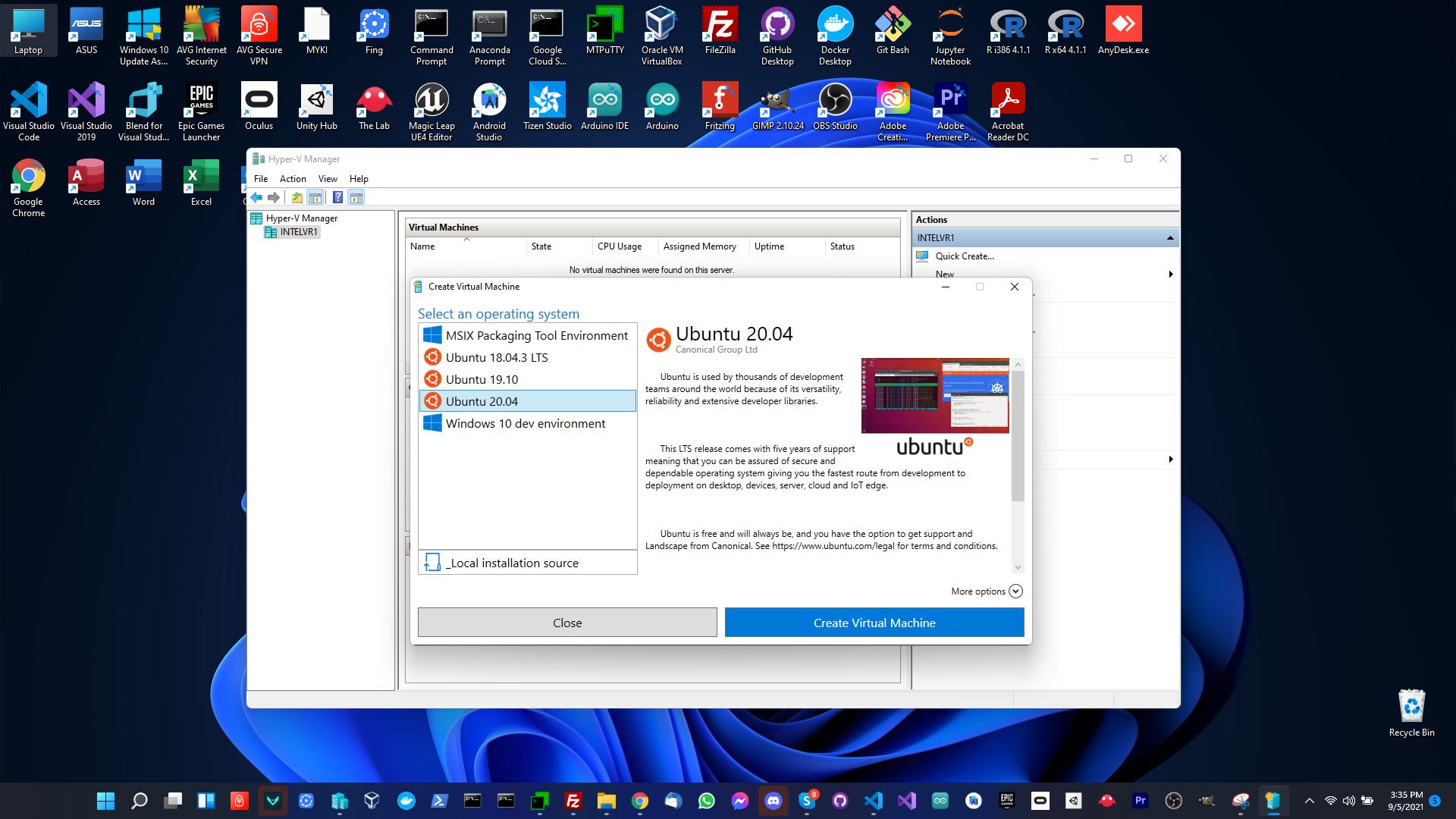
Open Hyper-V manager and click on Action -> Quick Create. Now click on Ubuntu 20.04 to download Ubuntu 20.04.
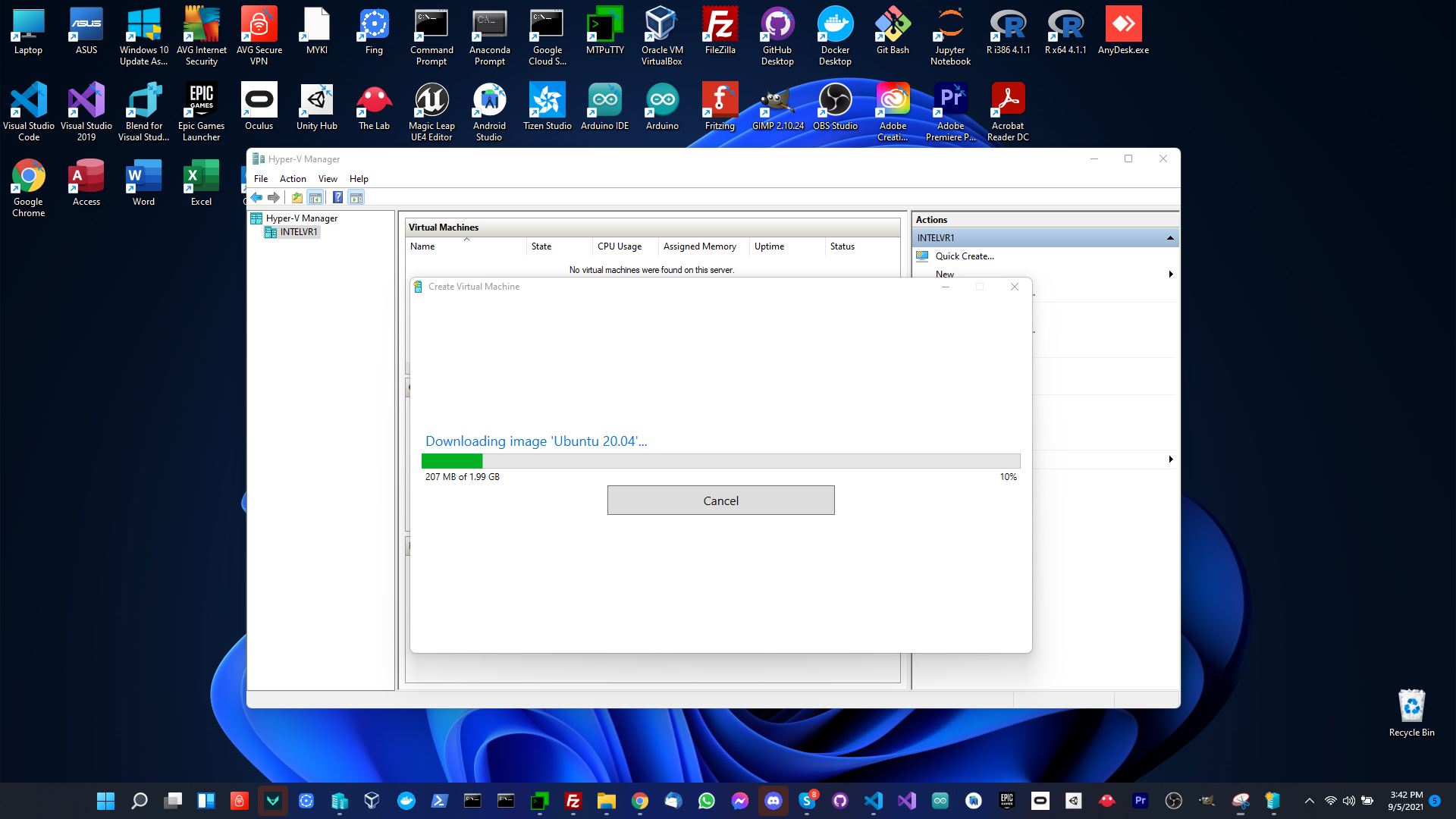
Windows will download Ubuntu.
Connect
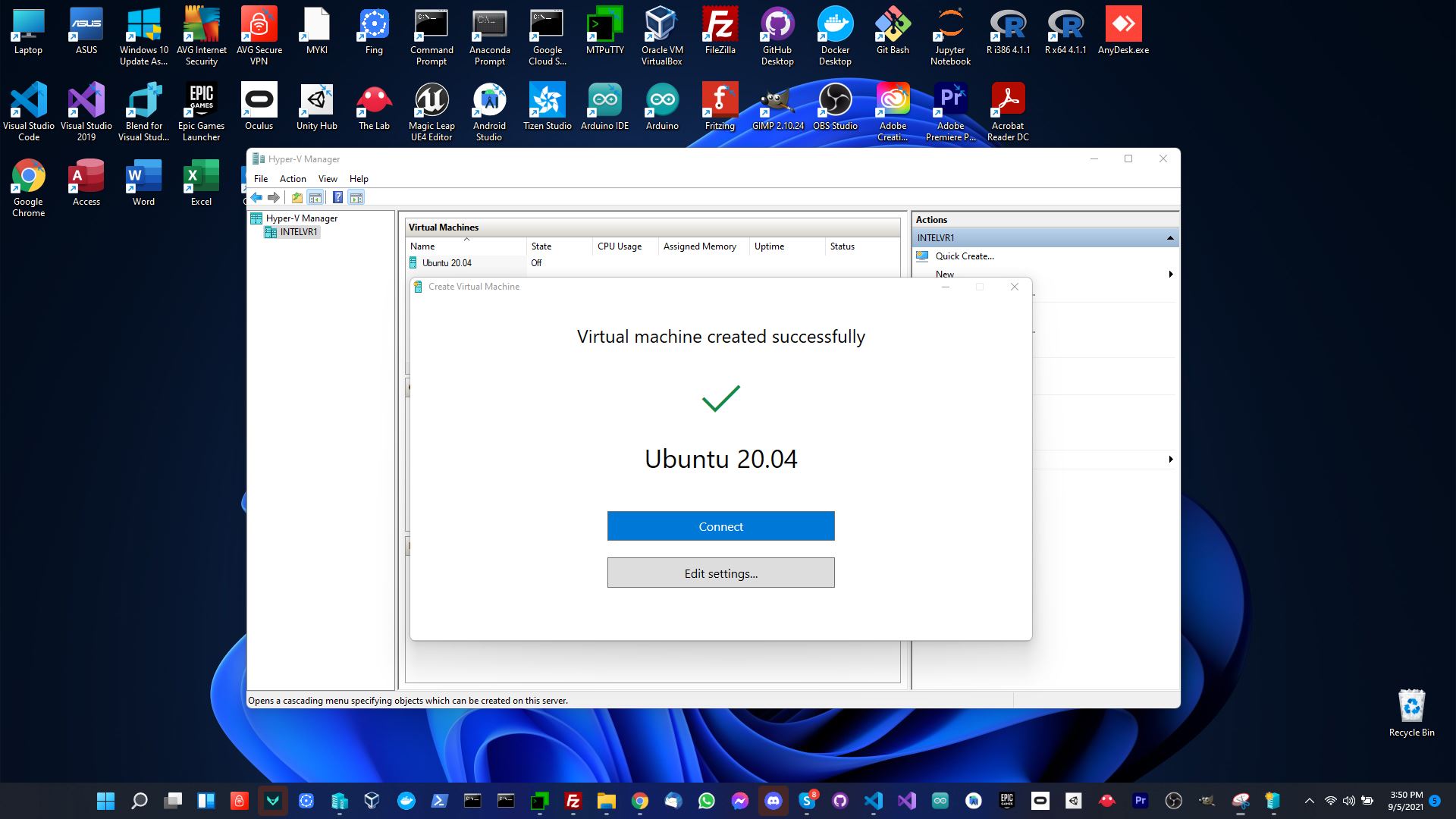
After the virtual machine is created, you can connect to it by clicking on the Connect button.
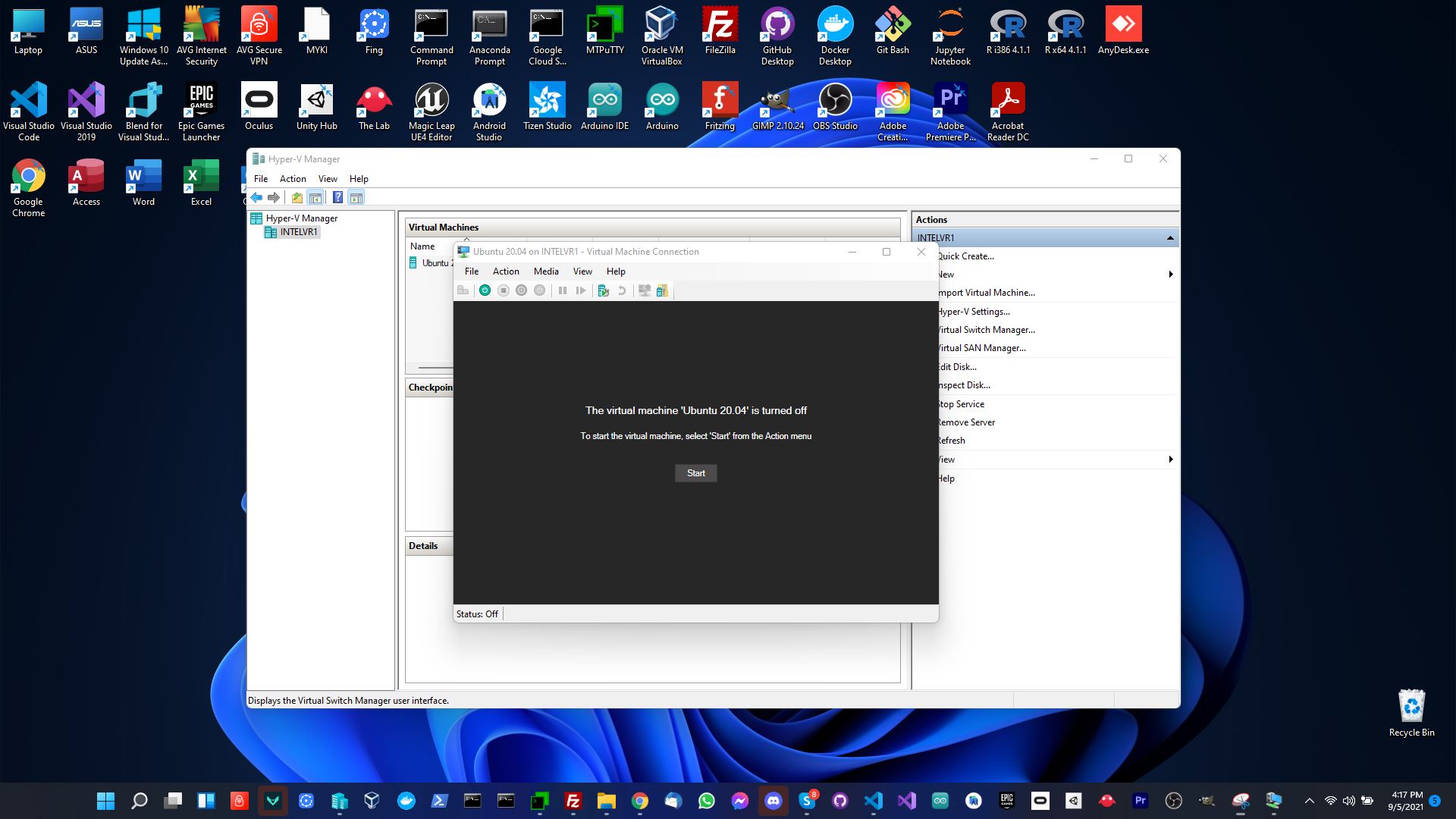
If you encounter an error you may need to disable compression for the virtual hard drive file by navigating to OS (:c) -> Users -> Public -> Public Documents -> Hyper-V -> Virtual Hard Disks, right click Ubuntu 20.04.vhdx -> Properties -> Advanced -> Compression and then disable compression.
Install Ubuntu
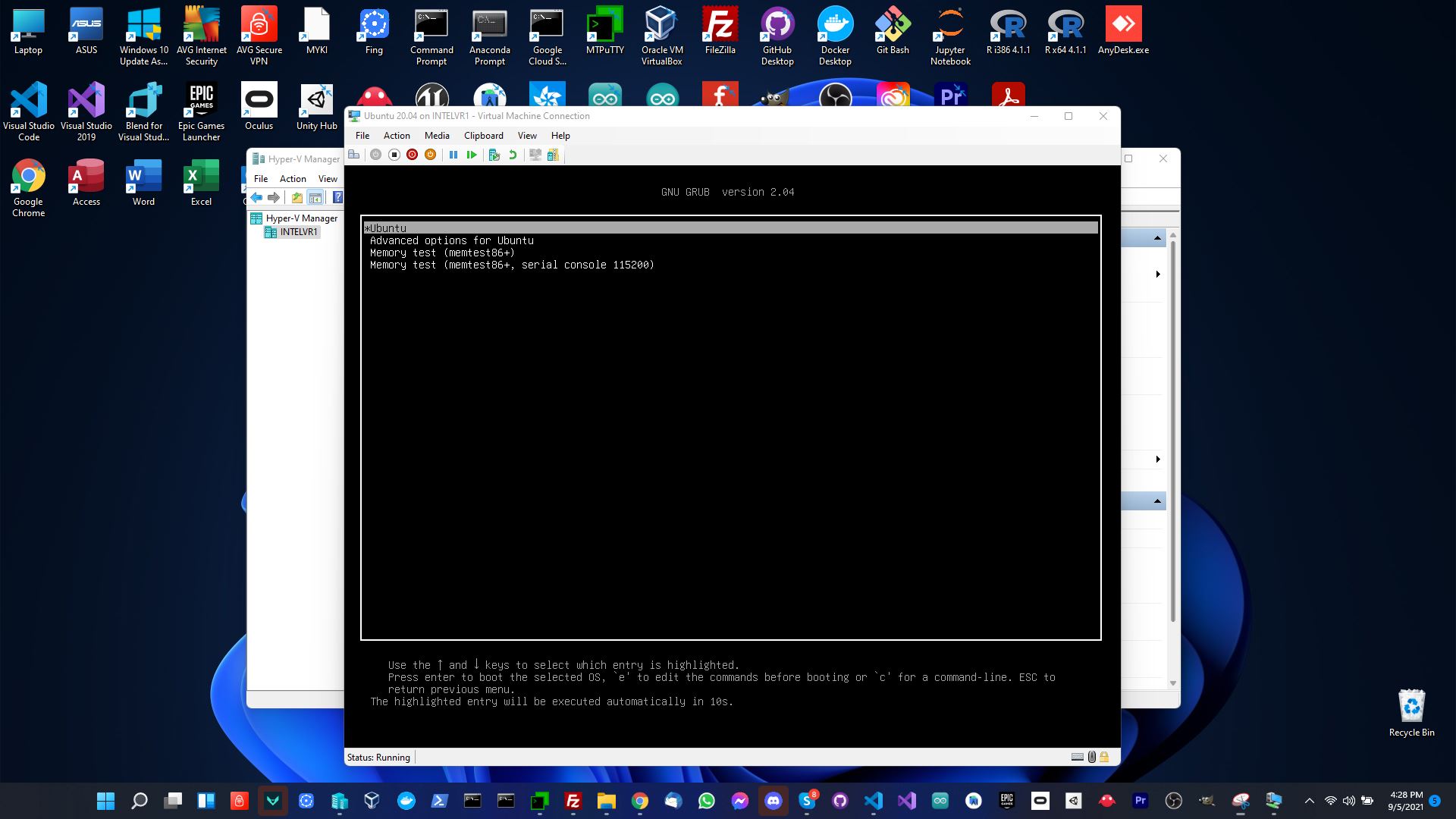
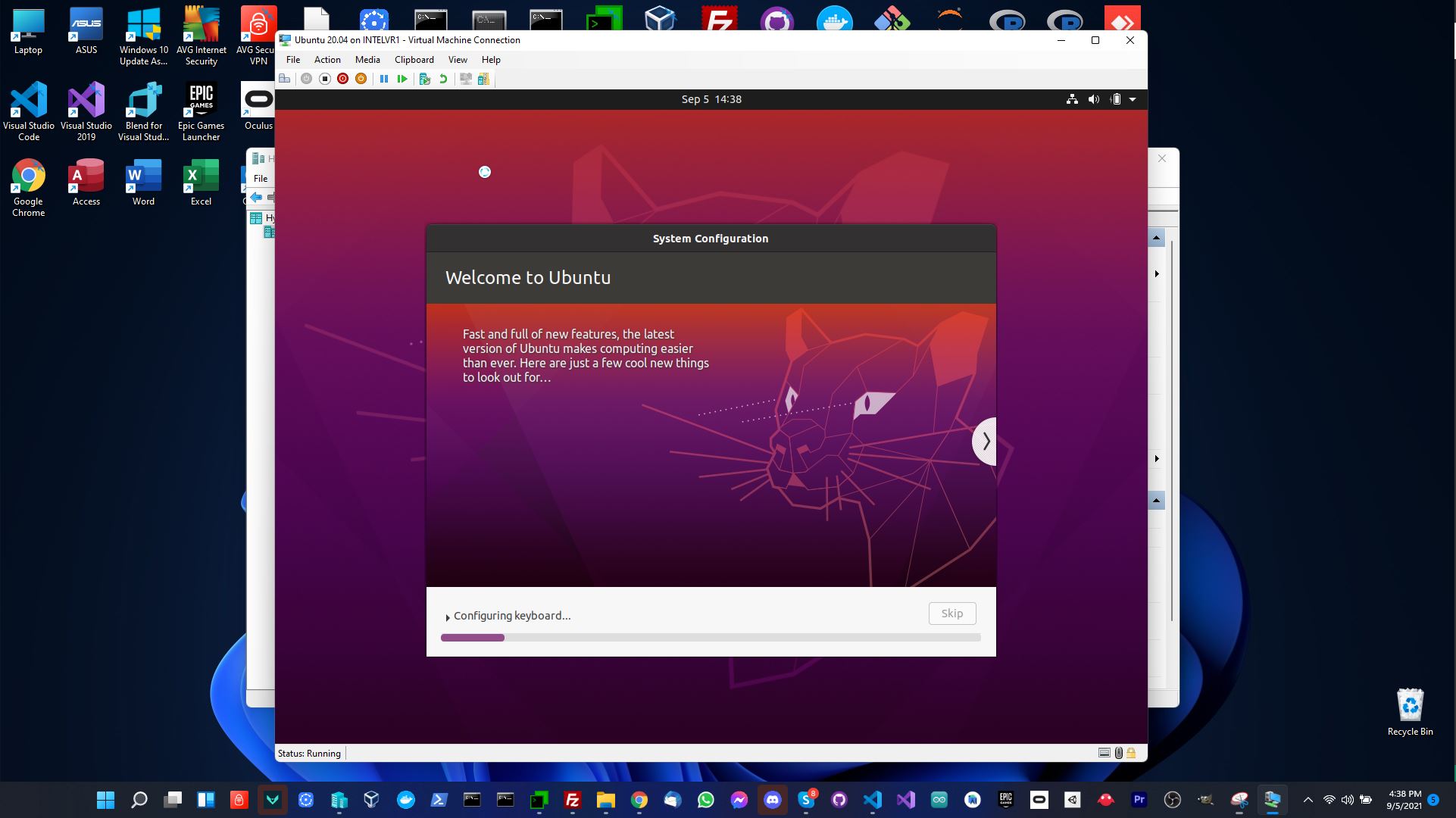
Now complete the Ubuntu installation to continue.
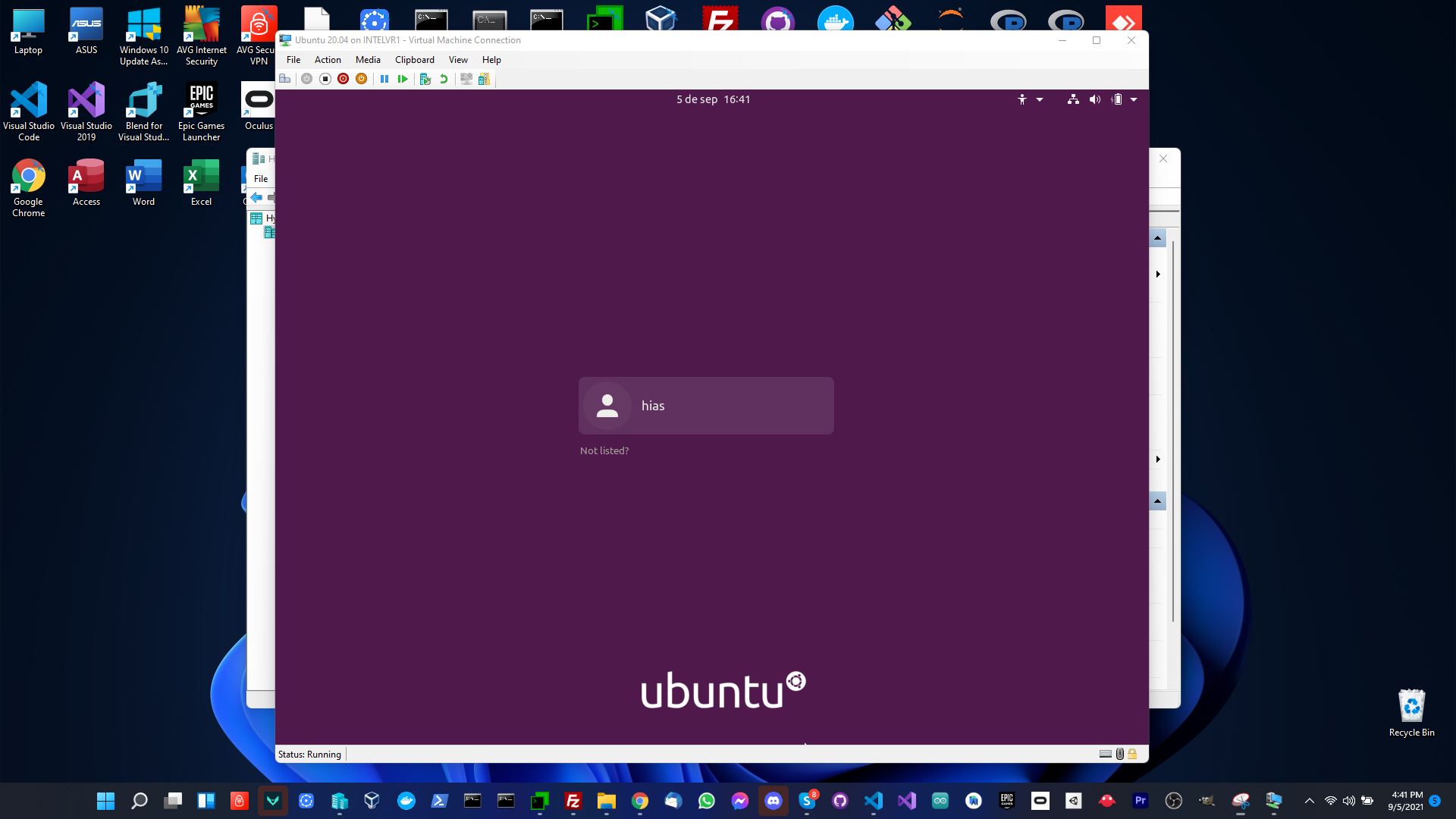
Log in to Ubuntu
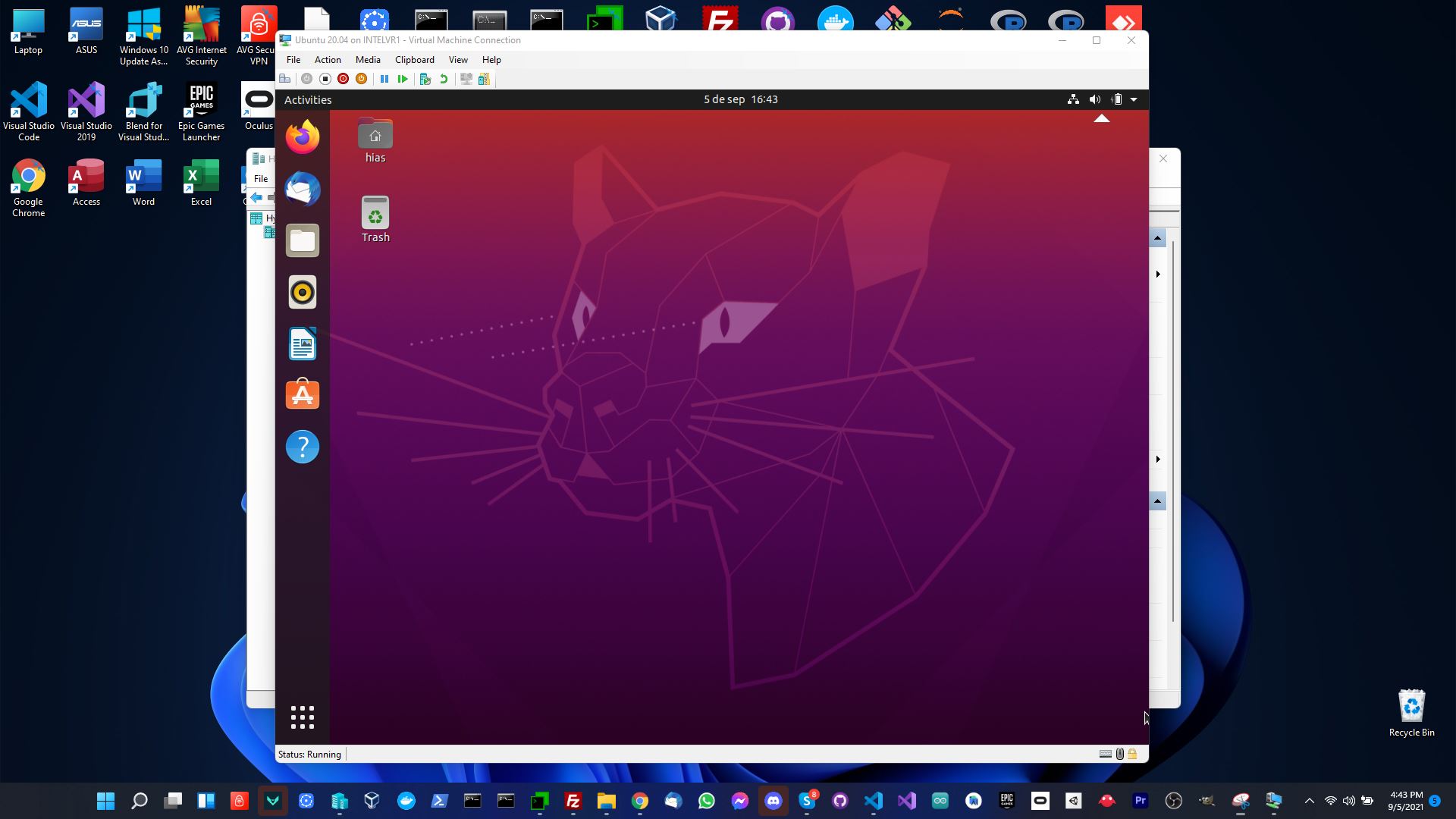
Install OpenSSH Server
Use the following command to install OpenSSH Server:
sudo apt install openssh-server
Install net-tools
Use the following command to install net-tools which will allow you to find the IP address of the virtual machine.
sudo apt install net-tools
Once installed run the following command to find your IP address:
ifconfig
From the results you are looking for the inet address in eth0. Using this address you can SSH into the virtual machine.
Increase Disk Size
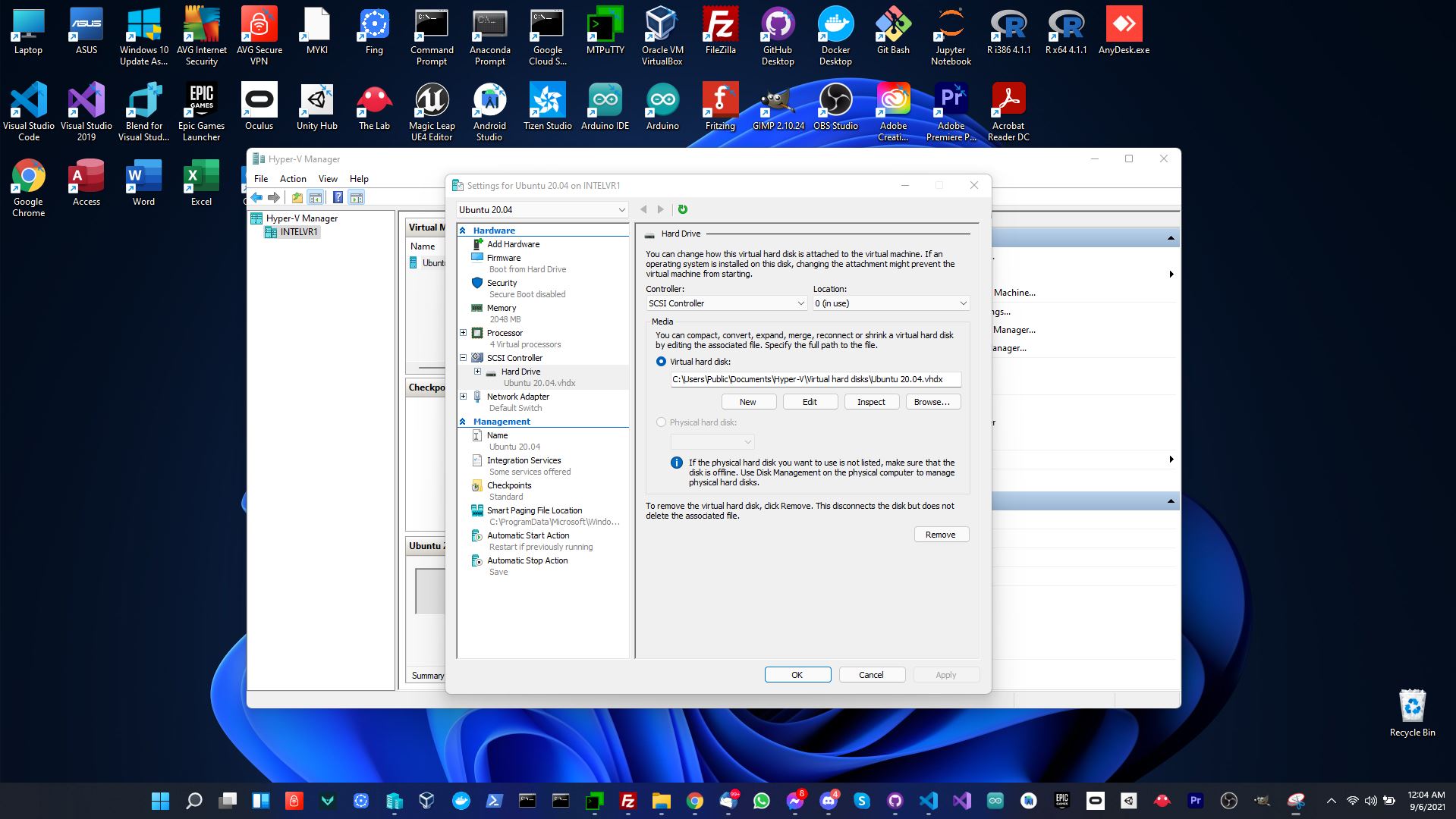
Shutdown the virtual machine and then increase the disk size by right clicking on the VM in the Virtual Machines section of Hyper-V Manager and then click on Settings -> SCSI Controller -> Hard Drive -> Edit.
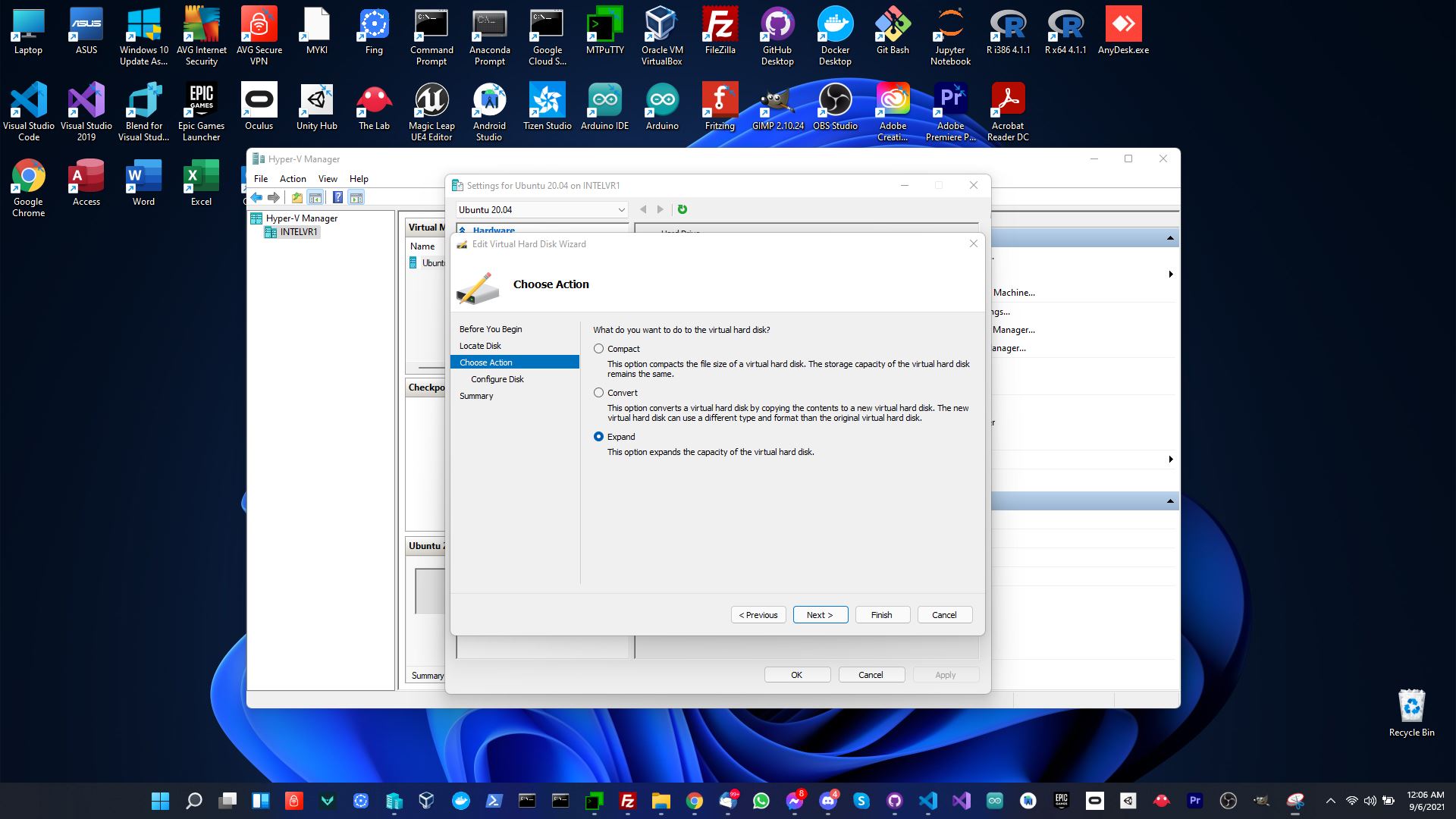
Click on next to continue, then click expand and next to continue. Enter the amount you would like to increase the disk size by and click finish to finish.
Now log back in to the virtual machine and run the following commands to expand the disk to the new size:
sudo apt install cloud-guest-utils
sudo growpart /dev/sda 1
sudo resize2fs /dev/sda1
Virtual Switch
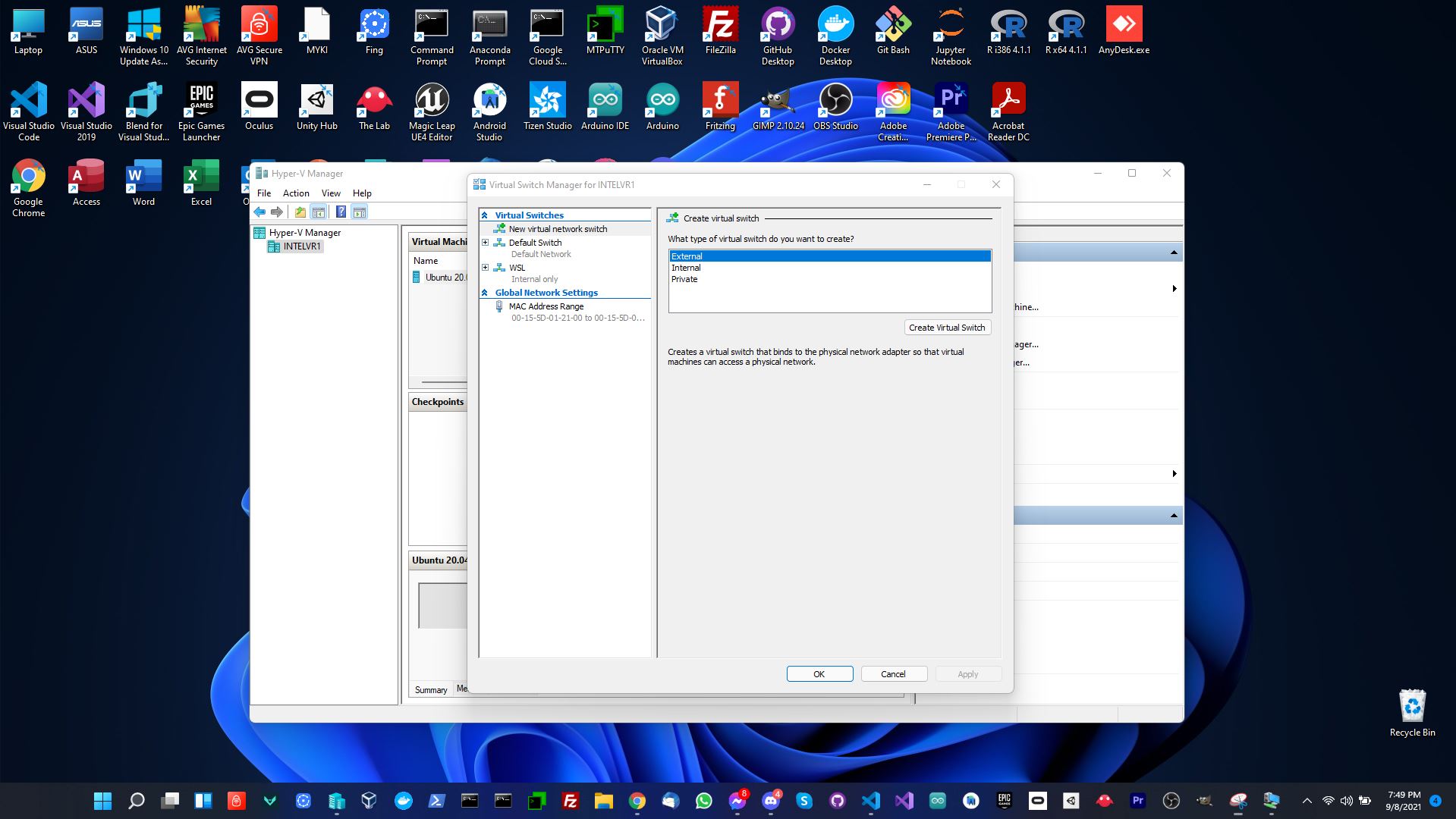
You need to create a virtual switch to allow it to be accessed from the outside world. To do so, right click on the host and select Virtual Switch Manager then click on Create Virtual Switch.
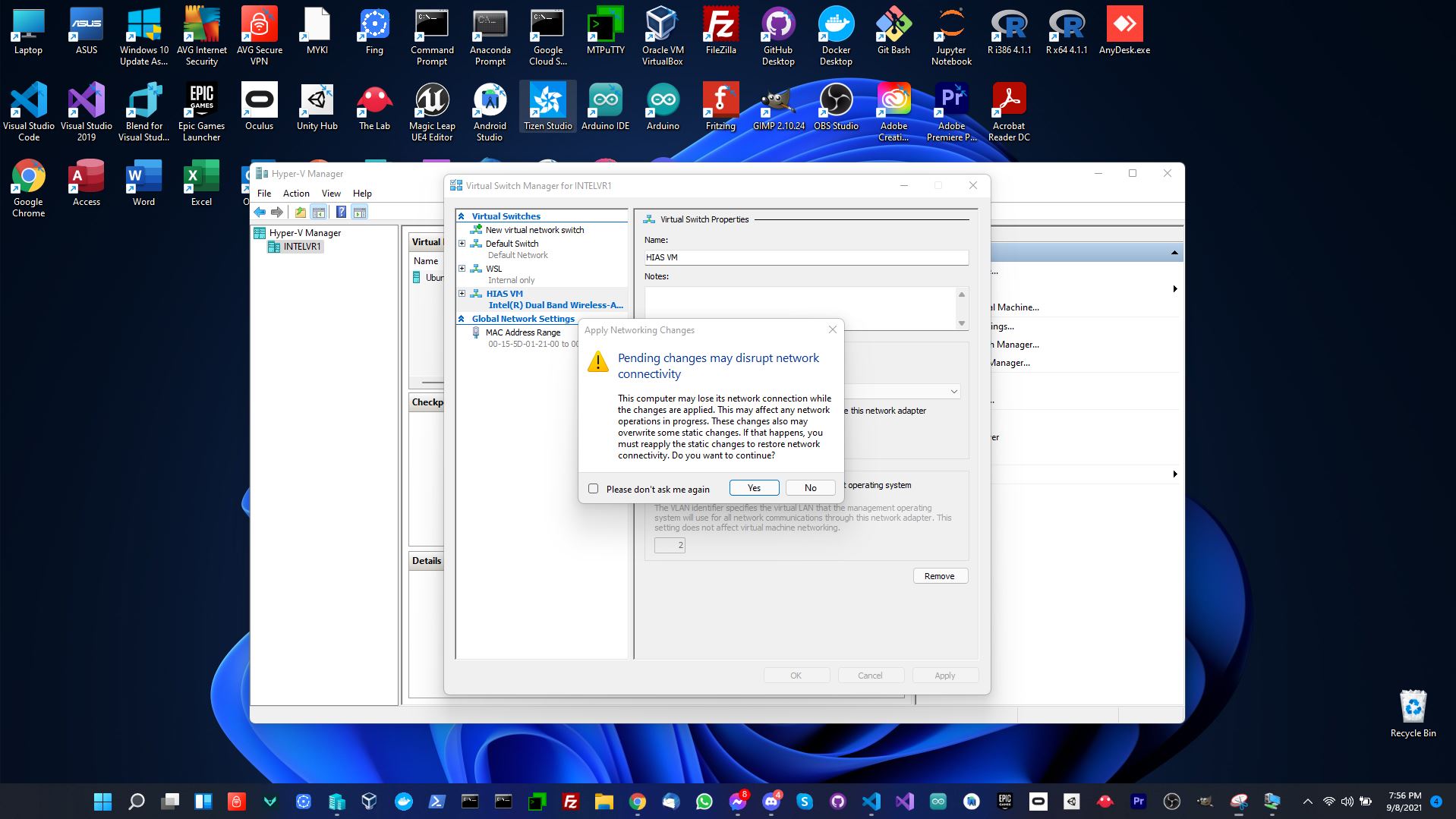
Finally choose your network adapter and click apply. You could likely have issues with this part however it is a requirement to be able to install HIAS Core on Hyper-V. Unfortunately if you do have issues creating the virtual switch the only solution is trial and error with multiple possible solutions available online, some of which can leave your machine in an usable state.
Continue
Now you are ready to continue to the Ubuntu installation guide.
Contributing
The Asociación de Investigacion en Inteligencia Artificial Para la Leucemia Peter Moss encourages and welcomes code contributions, bug fixes and enhancements from the Github community.
Ways to contribute
The following are ways that you can contribute to this project:
Please read the CONTRIBUTING document for a full guide to forking our repositories and submitting your pull requests. You will find information about our code of conduct on the Code of Conduct page.
You can also join in with, or create, a discussion in our Github Discussions area.
Contributors
All contributors to this project are listed below.
- Adam Milton-Barker - Asociación de Investigacion en Inteligencia Artificial Para la Leucemia Peter Moss President/Founder & Lead Developer, Sabadell, Spain
Versioning
We use SemVer for versioning.
License
This project is licensed under the MIT License - see the LICENSE file for details.
Bugs/Issues
We use the repo issues to track bugs and general requests related to using this project. See CONTRIBUTING for more info on how to submit bugs, feature requests and proposals.